Enable Google reCAPTCHA in your Experience Cloud site.
This guide is intended to document how to implement Google reCAPTCHA for use with the Flow Tool Kit (Form and Table Builder) app. Note: reCAPTCHA To enable Google reCAPTCHA v3 within your site, you will need to complete the following steps.
- Create a Google reCAPTCHA Account
- Update Custom Metadata with Site and Secret Keys
- Update Content Security Policy (CSP) and Trusted Sites for Scripts
- Add Google reCAPTCHA EventListener to your site's Head Markup
Create a Google reCAPTCHA Account
You will need a Google Account to complete this step, preferably your company's Google Account. First, log in to the google account, then navigate to the following link: https://www.google.com/recaptcha/admin/create.
Complete the new site registration form, and be sure to select "reCAPTCHA v3" when selecting the reCAPTCHA type. Next, add the domain name of your experience cloud site to the "Domains" list. Note: if you have multiple sites or custom domains, you can add them all to the same account.
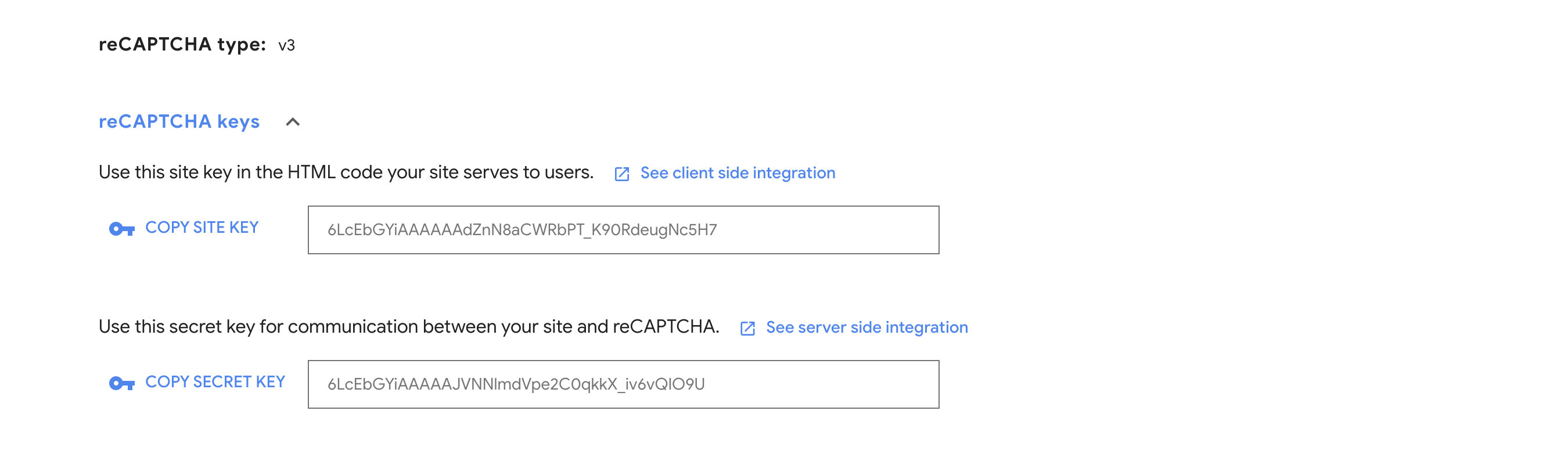
After submitting your form, navigate to the reCAPTCHA keys section. You will need these keys for the following steps.
Update Custom Metadata with Site and Secret Keys
The Flow Tool Kit (Form and Table Builder) app integrates with your reCAPTCHA account. When a custom button has reCAPTCHA enabled, we send a callout to Google, and Google passes back your site's reCAPTCHA score. This requires your reCAPTCHA account's Site Key and Secret Key so that Google can match your domain with your account and response.
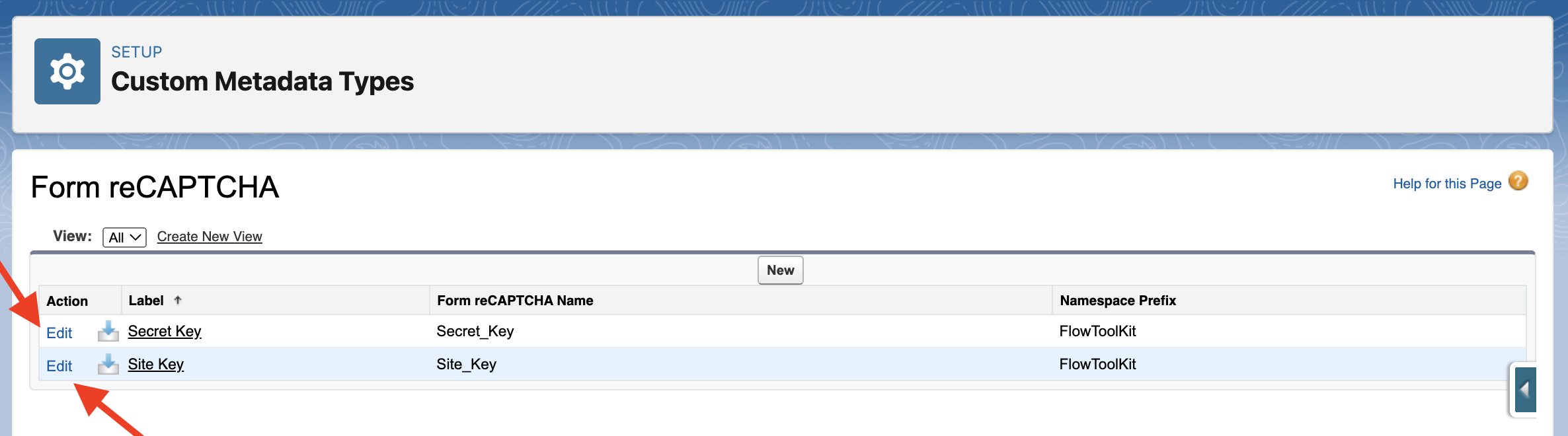
Log-in to Salesforce and click: Setup --> Custom Metadata Types --> Form reCAPTCHA --> "Manage Form reCAPTCHA"
There are two records to update, "Secret Key" and "Site Key." Click "Edit" next to each record, and paste in the corresponding value from your Google reCAPTCHA account, then click save. Note: if you ever change google Accounts, this will need to be updated.
Update Content Security Policy (CSP) and Trusted Sites for Scripts
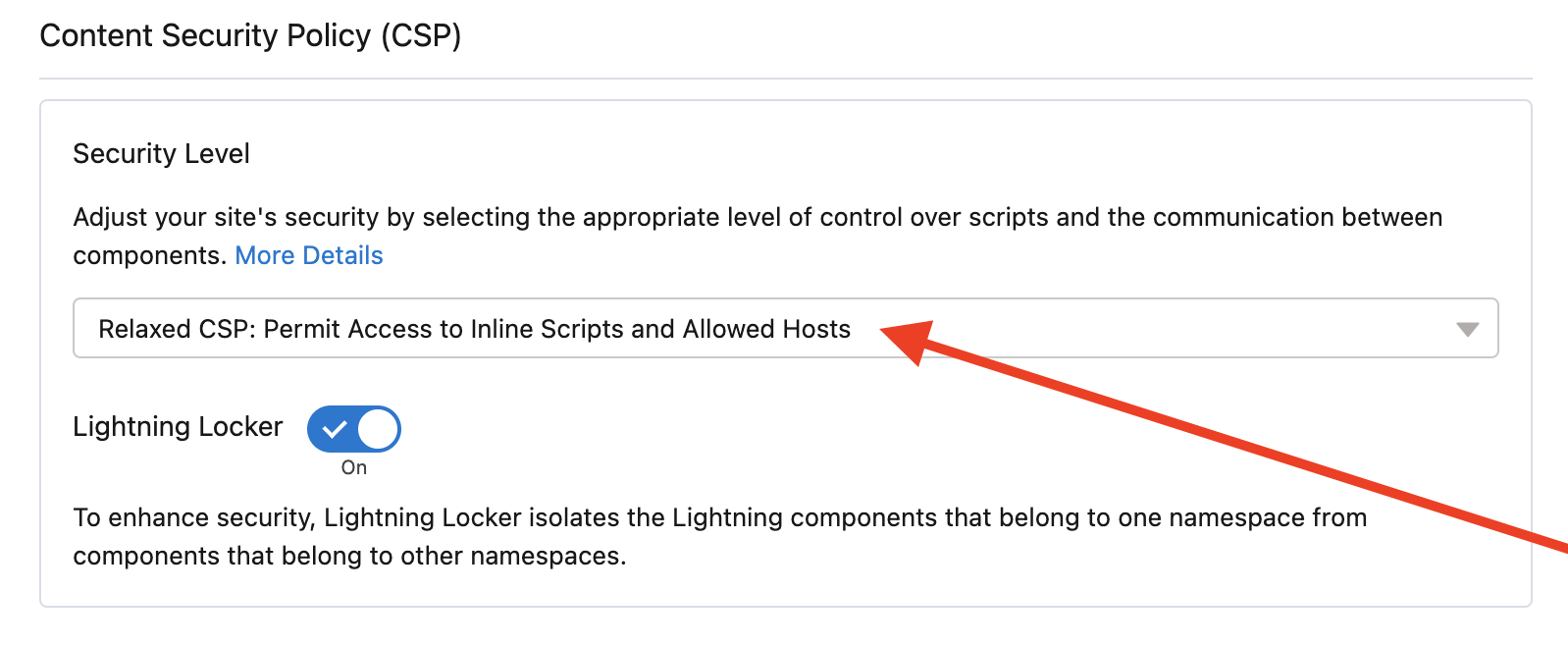
To enable Google reCAPTCHA within your experience cloud site, we need first to relax your Content Security Policy. We then add a few trusted sites that contain the Google scripting resources to your list of Trusted Sites for Scripts. Navigate to the Experience Builder for your site to complete the following setup steps.
Step 1: Relax Security Level
Click on the "Settings" icon, then click the "Security & Privacy" tab. Inside the "Security & Privacy" tab, ensure that the Security Level selector is set to "Relaxed CSP: Permit Access to Inline Scripts and Allowed Hosts."
Step 2: Add Trusted Sites
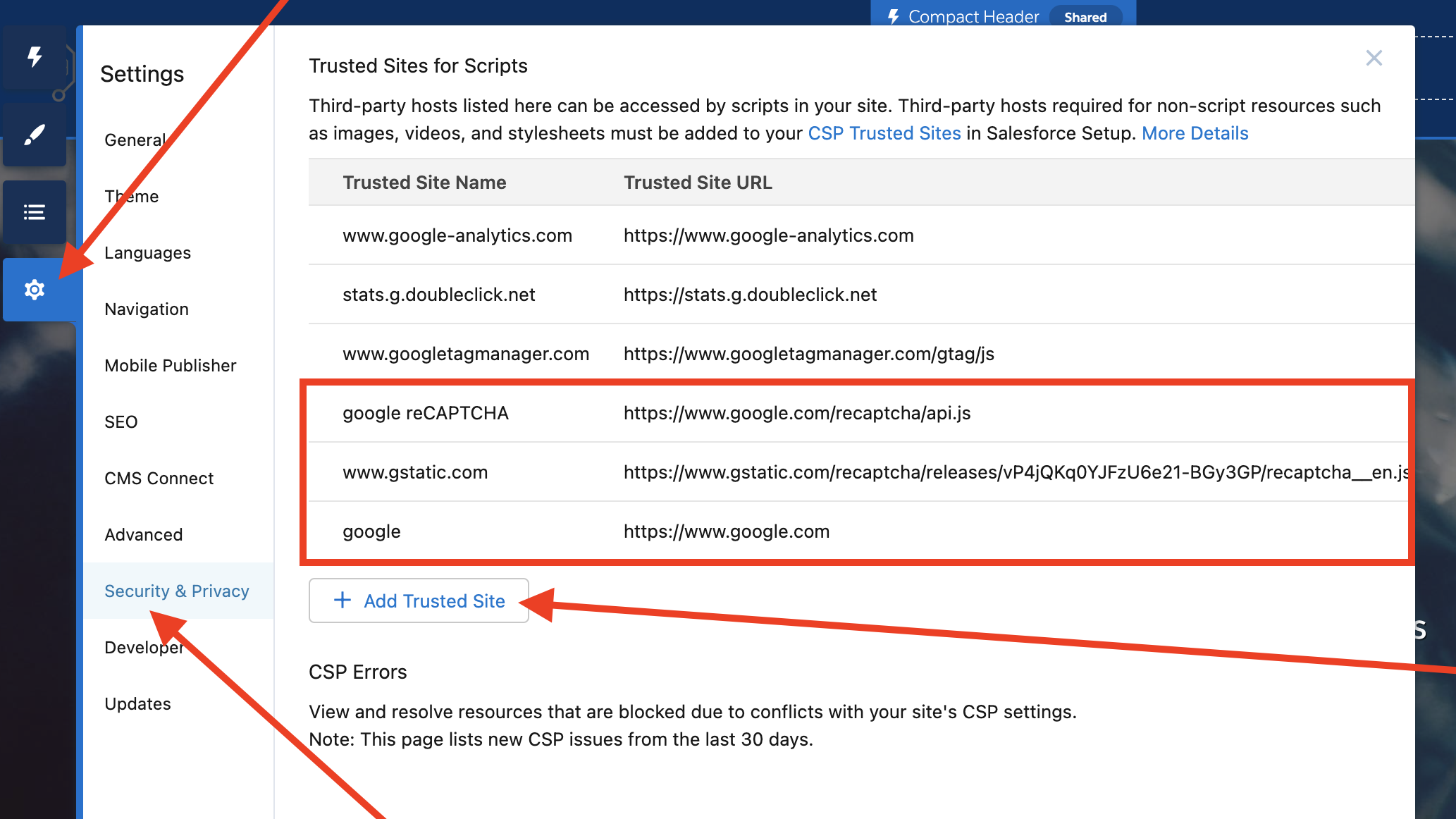
Click on the "Settings" icon, then click the "Security & Privacy" tab. Inside the "Security & Privacy" tab, click on the "Add Trusted Site" button to add the following (3) trusted sites to the Trusted Sites for Scripts section.
Google reCAPTCHA
https://www.google.com/recaptcha/api.js
www.gstatic.com
https://www.gstatic.com/recaptcha/releases/vP4jQKq0YJFzU6e21-BGy3GP/recaptcha__en.js
Add Google reCAPTCHA EventListener to your site's Head Markup.
Step 1: Open Head Markup Editor
Click on the "Settings" icon, then click the "Advanced" tab. Inside the "Advanced" tab, click on the "Edit Head Markup" to view and edit your site's head markup.

Step 2: Paste in EventListener code
Paste the following code snippet into the Head Markup editor. Important!!!! Before clicking "Save," replace Your_Google_reCAPTCHA_Site_Key_Value, with the Site Key value you received from Google. Note there are two references needing to be replaced. Do not remove the quotation marks. Click the "Save" button when ready to commit.
<!--reCaptcha v3-->
<script>
document.addEventListener('grecaptchaExecute', function(event) {
grecaptcha.execute('Your_Google_reCAPTCHA_Site_Key_Value', {action: event.detail.action}).then(function(token) {
document.dispatchEvent(new CustomEvent('grecaptchaVerified', {'detail': {
response: token,
action: event.detail.action,
key: event.detail.key
}}));
});
});
</script>
<script src='https://www.google.com/recaptcha/api.js?render=Your_Google_reCAPTCHA_Site_Key_Value'></script>
<!--reCaptcha v3-->